

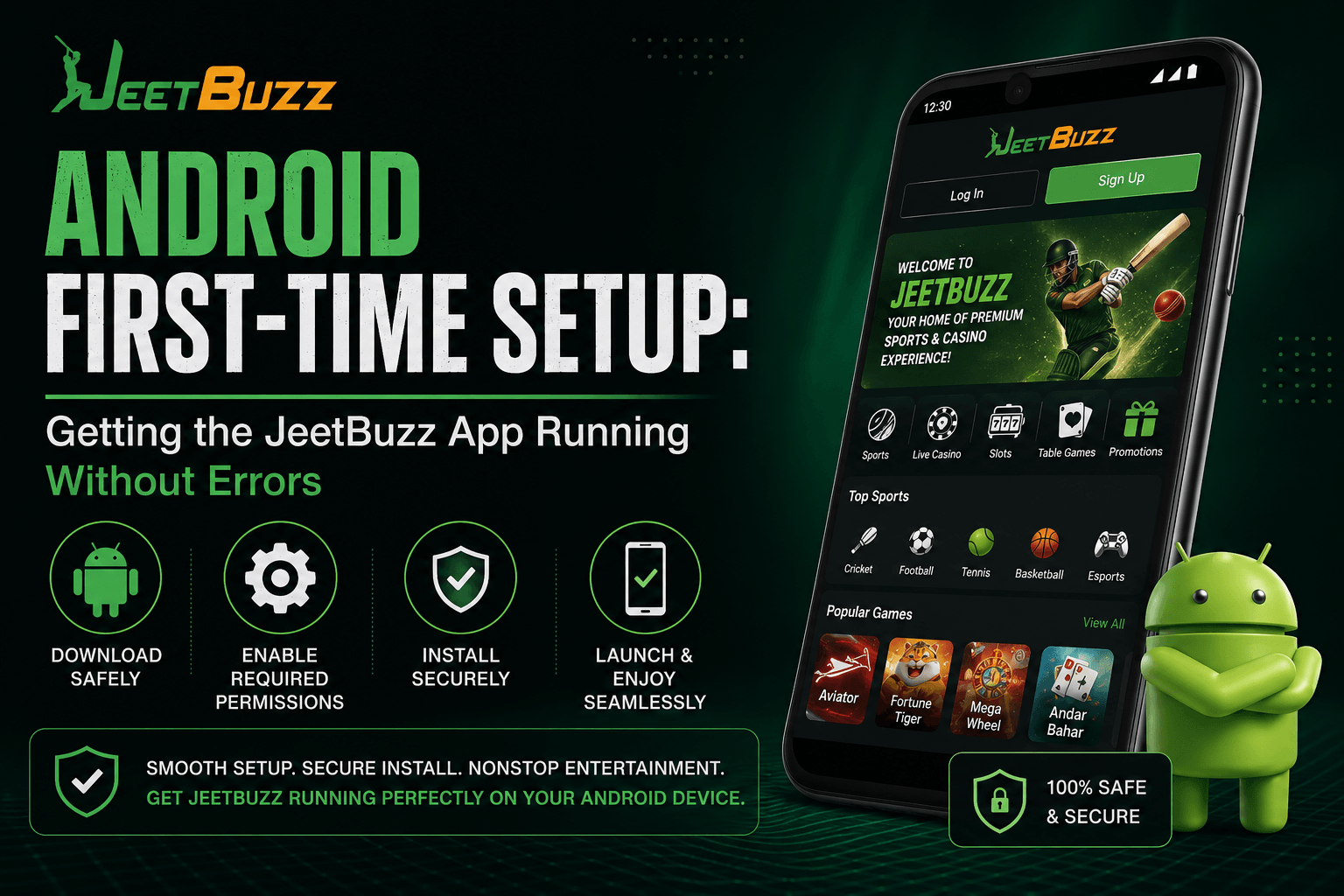
The JeetBuzz Android package is only 6.5 MB, which is smaller than many photo files on an average phone. This matters because many installs happen on entry-level devices with limited storage and unstable 3G or 4G coverage, so a lightweight APK helps avoid stalled downloads and timeout errors that heavier gaming apps often create. Several steps in the installation process differ from a typical Play Store download, and skipping them is one of the most common causes of first-run errors.
Checking Device Compatibility Before You Download
Compatibility problems rarely show clear error messages. In many cases, the app simply crashes on first launch or the install button becomes greyed out. The JeetBuzz Android build requires Android 5.0 (Lollipop) or newer, at least 2 GB of RAM, and roughly 150 MB of free storage once unpacked, even though the download itself is only 6.5 MB. Devices below that RAM threshold may install the app, but they can lag heavily during live casino streams or in-play betting screens.
- Android version: 5.0 or higher, confirmed under Settings > About Phone > Android Version
- RAM: 2 GB minimum, though 3 GB or more gives smoother live-dealer streaming
- Free storage: 150 MB available after installation, not only at download time
- Active internet connection: stable 3G/4G or Wi-Fi throughout the installation, since interruptions can corrupt the APK
A device that technically meets the minimum requirements but is already low on storage may still struggle, because Android needs extra space beyond the app’s own size to cache data and write temporary installation files. Clearing at least 300–400 MB beforehand helps avoid the “insufficient storage” error that can otherwise interrupt the installation halfway through.
Downloading the APK From the Official Source
Search results and third-party repositories sometimes contain outdated or repackaged JeetBuzz files, and installing them creates security risks unrelated to the operator itself. The safer route is to go directly to the JeetBuzz homepage on a mobile browser, where the download icon is usually placed near the bottom of the page rather than hidden in a header menu. Users typically start their jeetbuzz app download through Chrome or a similar mobile browser instead of a third-party store, keeping the file traceable to the operator’s own server.
Once the download begins, Chrome or Samsung Internet usually shows a progress bar in the notification tray. Because the file is small, most connections complete the download in under 20 seconds even on a moderate mobile data plan, which is one practical benefit of keeping the APK lightweight.
Enabling Unknown Sources the Correct Way on Modern Android
Why the Old One-Switch Method No Longer Works
Anyone following outdated tutorials may look for a single “Unknown Sources” toggle under Security settings and fail to find it. Since Android 8.0 (Oreo), each app capable of installing other apps, such as a browser or file manager, must be granted permission individually. This per-app model prevents one approval from opening the entire device to unauthorized installs, but it also means the exact menu path can differ depending on whether Chrome, Firefox, or a file manager triggered the installation prompt.
Here is the sequence that applies to most Android 8 through 14 devices installing JeetBuzz for the first time:
- Tap the downloaded APK file from the notification bar or Downloads folder.
- Android blocks the installation with: “For your security, your phone is not allowed to install unknown apps from this source.”
- Tap “Settings” within that prompt to open the specific permission screen for the browser used.
- Toggle “Allow from this source” on, then tap the back arrow, not the home button, to return to the installation screen.
- Tap “Install” again; it should now proceed without the blocking message.
Pressing Home instead of Back at step four is the most common reason installations fail twice in a row, because Android discards the pending installation session when the app closes in the background.
Granting Permissions After Installation
Getting past the security prompt is only half of the setup. JeetBuzz may then request storage access for saving betting slips and transaction receipts, plus notification permission for match alerts and promotions. Denying storage access does not stop the app from opening, but it can prevent screenshots of bet confirmations from saving locally, which may become a problem if proof is needed later for a disputed wager. Notification permission is worth managing carefully rather than blocking automatically, because odds-change alerts on live markets can be time-sensitive.
Location permission may also appear as part of compliance checks that confirm whether a user can access wagering features from an eligible area. This is standard among regulated sportsbooks and is not unique to JeetBuzz. Refusing it may trigger repeated verification prompts rather than an immediate block.
Troubleshooting Common Setup Errors
Most first-run problems come from three causes: an interrupted download that leaves a corrupted APK, a permission reset after an operating system update, or insufficient RAM that causes the app to force-close on launch. Re-downloading over Wi-Fi rather than mobile data resolves the first issue in many cases, because unstable connections can corrupt a 6.5 MB file during transfer. For permission resets, check Settings > Apps > Chrome > Install Unknown Apps after any Android update, as some manufacturer skins may revoke this permission after security patches.
When none of these steps resolves the issue, JeetBuzz live chat usually responds faster than email and can be useful for installation-stage errors where an agent may need to guide the user through device-specific menus. Getting the setup right the first time, rather than repeating failed installation attempts, is what determines whether the app runs smoothly from day one.

View 0 comments